Installation steps
- Download the APK
- Install the app
- Handle Google Play Protect
- Open the app
- Create your account
- Register your phone number
- Add your email address
- Verify your email
- Enter verification code
- Add Blip SMS to white list
- Let the app run in the background
- Get started
- Grant permissions
- Verify your phone number
- Wait for automatic detection
- Agree to Terms & Conditions
- Stay online and earn
Download the APK
Enter your email below and we'll send you the download link. You may see a warning during installation — this is a common alert for apps installed outside the Play Store and doesn't mean the app is unsafe.
Check your email!
We've sent the download link to your inbox. Open the link on your Android phone to begin installation.
Install the app on your phone
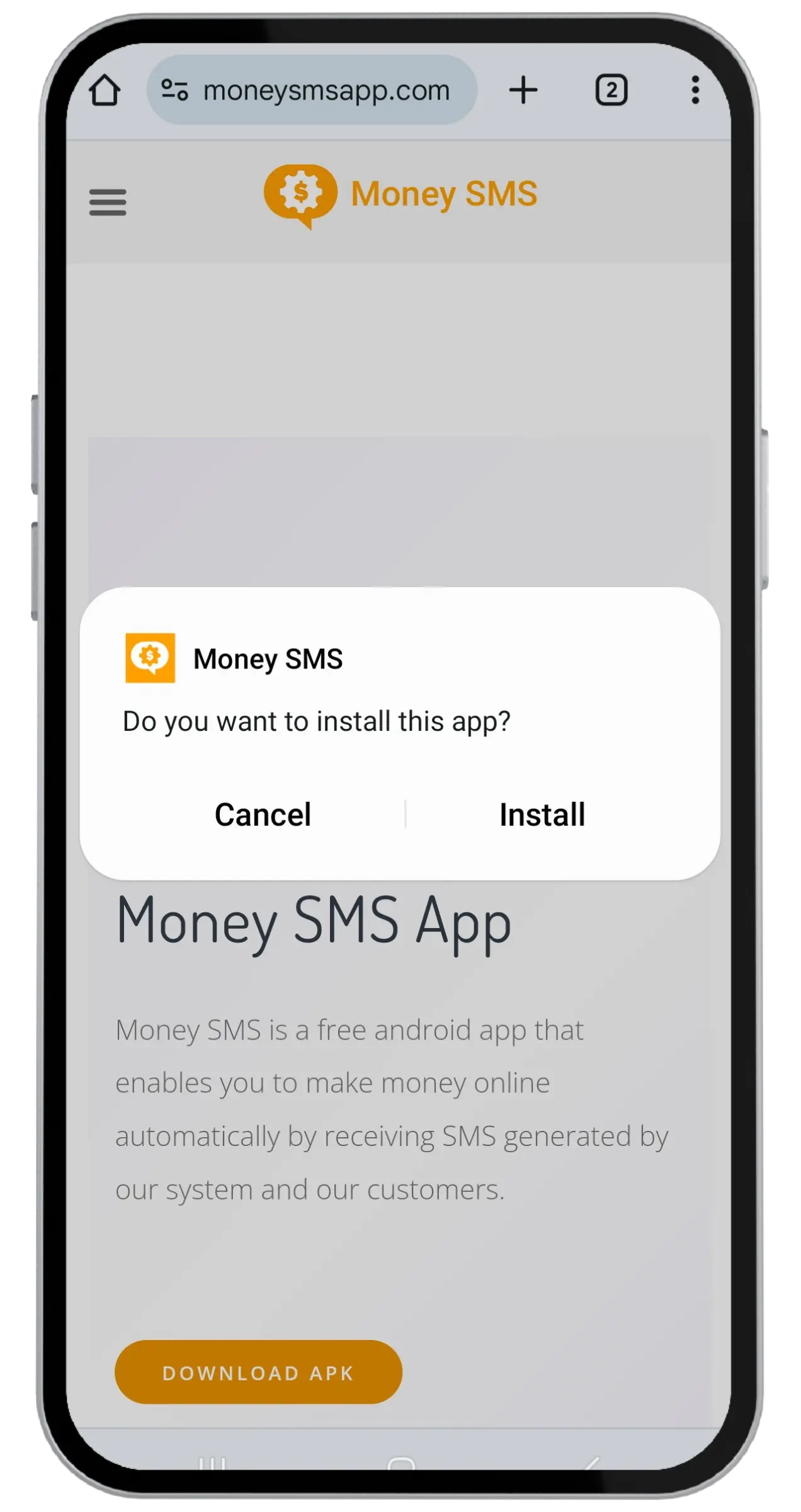
Find the APK in your Downloads folder and open it. Once the file is opened, you'll be asked to install the app. Tap "Install". This is when you may see a Google Play Protect warning, which is a default security check for APKs.
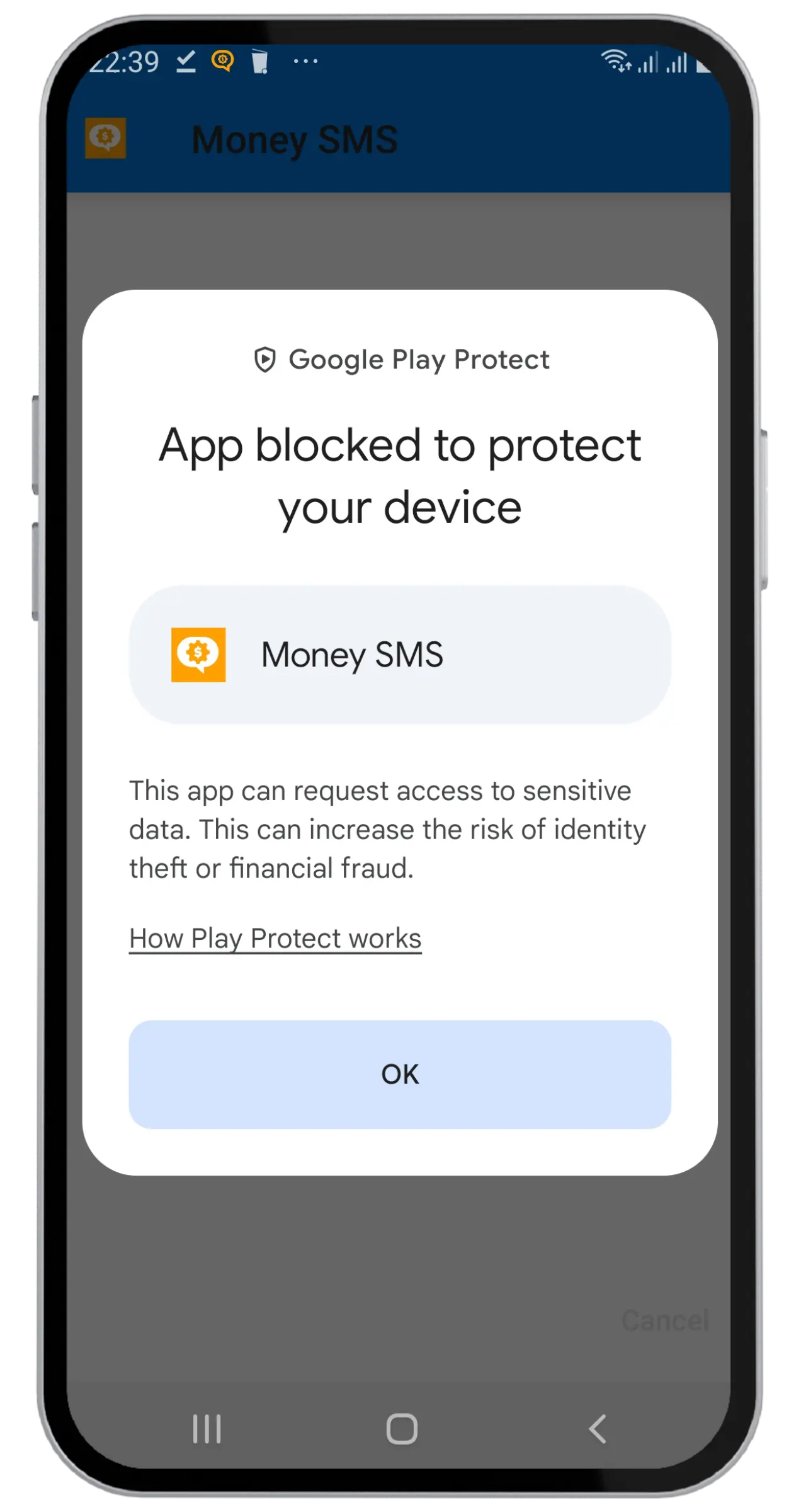
Handle Google Play Protect
Tap "OK" to dismiss the warning. Go to Settings → Security → Google Play Protect, tap the gear icon, and turn off "Scan apps with Play Protect". After that, reopen the APK file to install. You can turn Play Protect back on after installation.
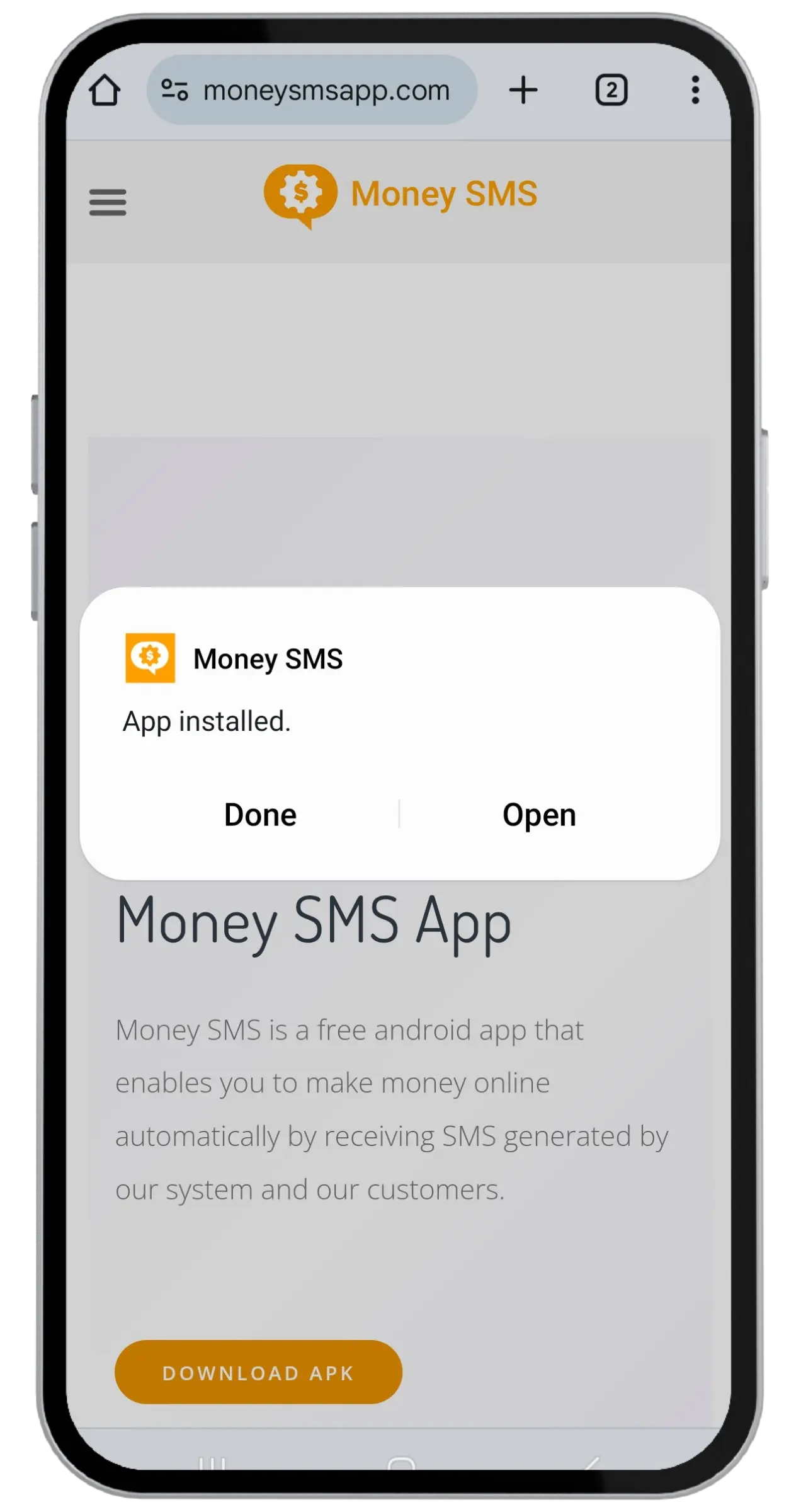
Open the Blip SMS app
When you tap "Install", the installation process will begin. Once the app is installed on your device, you'll be prompted to launch it. Tap "Open".
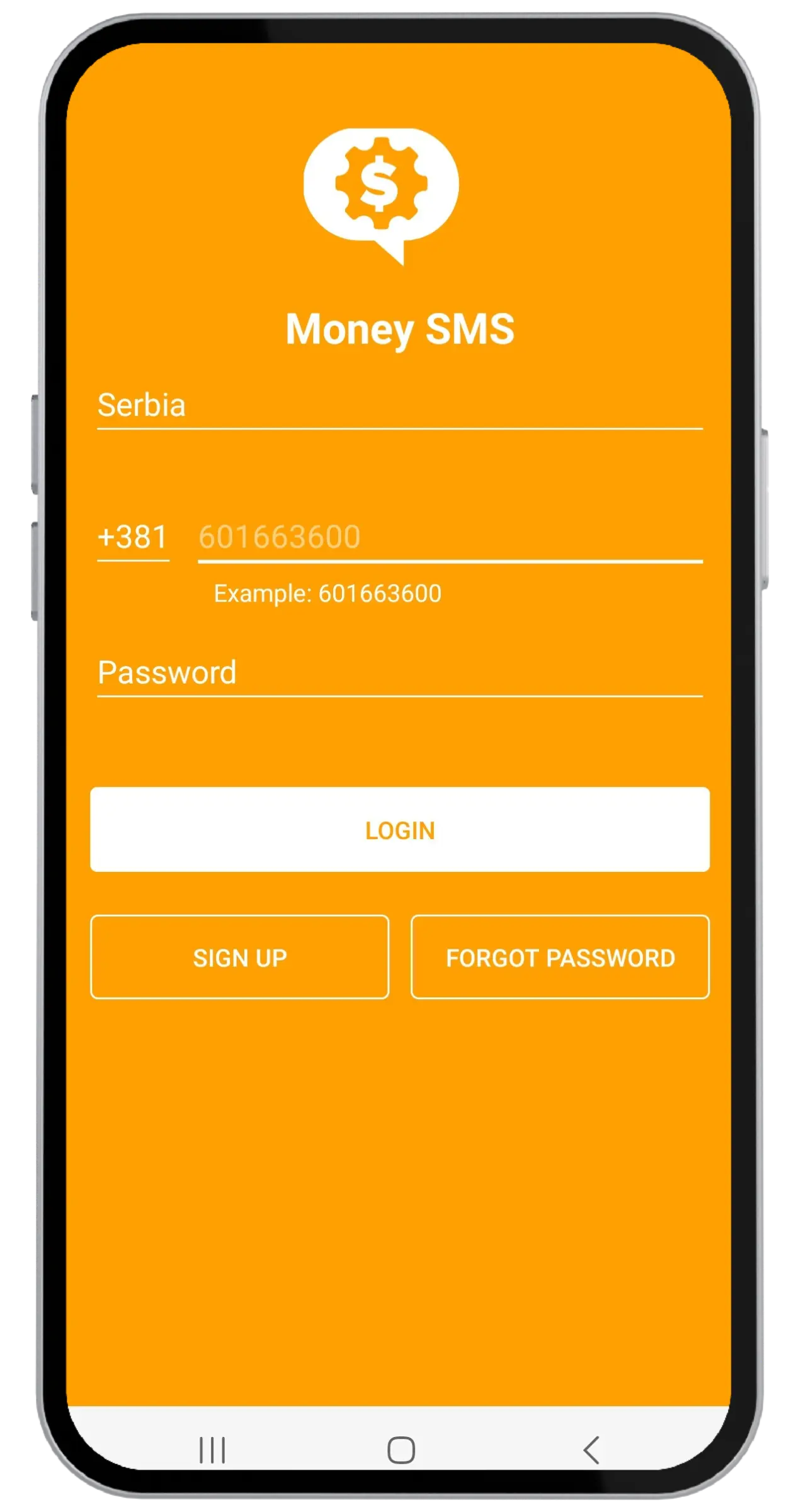
Start creating your account
Upon the first app launch, you'll be prompted to register. Tap "Sign up" to start the process.
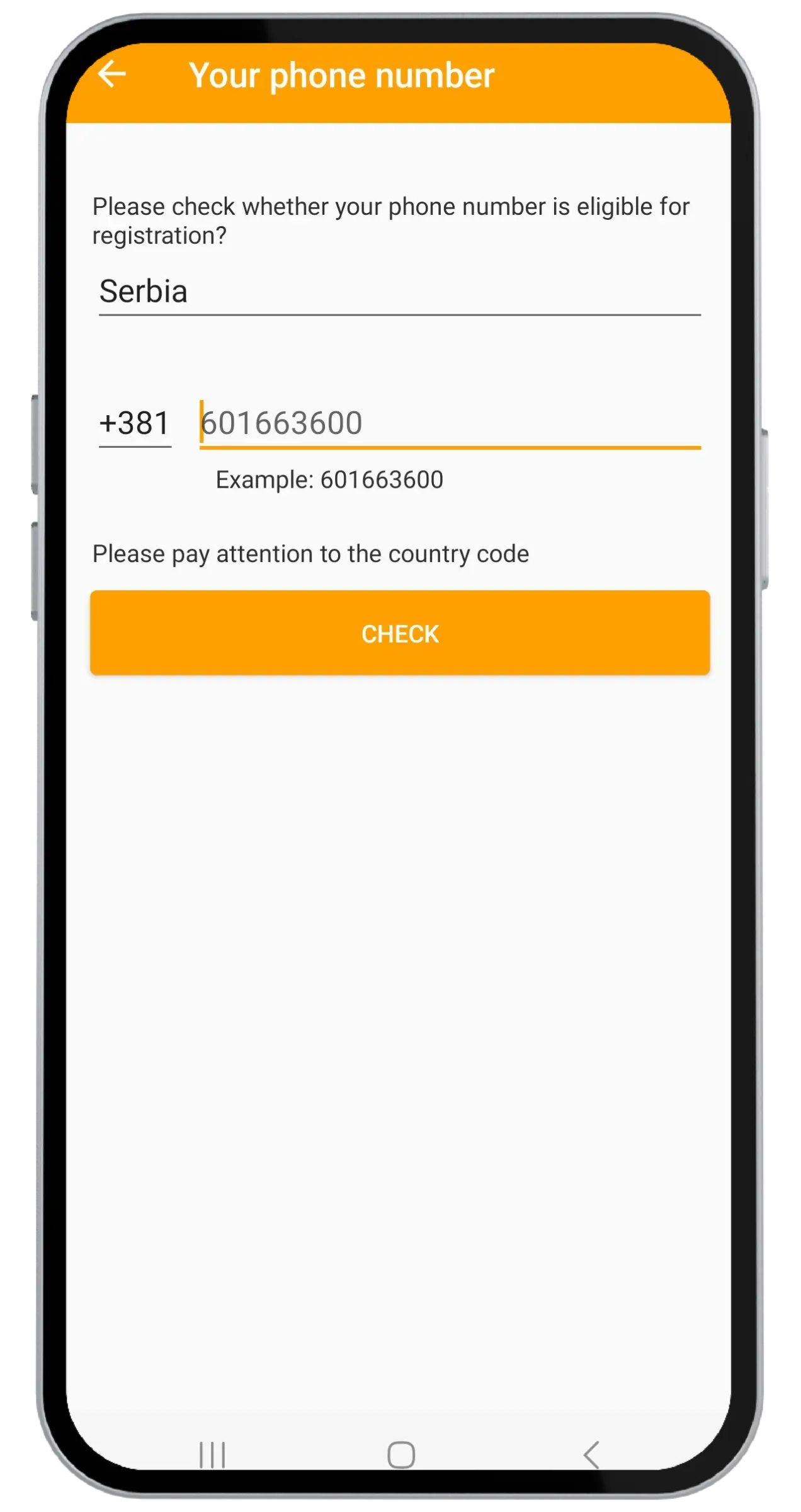
Register your phone number
The app will ask you to enter your phone number to confirm it can be registered. Type in your number (be careful with the country code) and tap "Check".
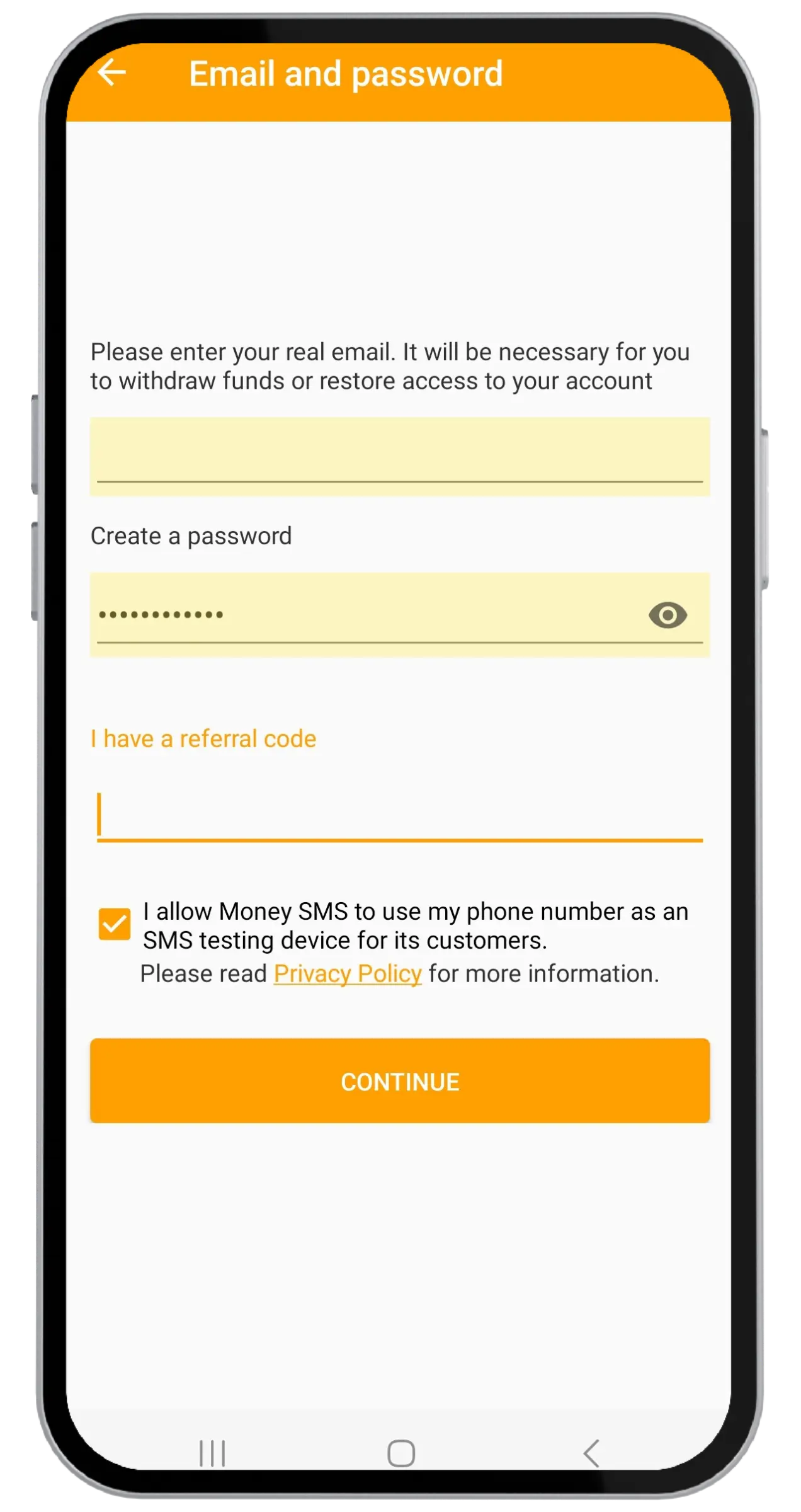
Add your email address
Enter a valid email and create a secure password. Tick the box to allow the app to use your number for SMS testing purposes.
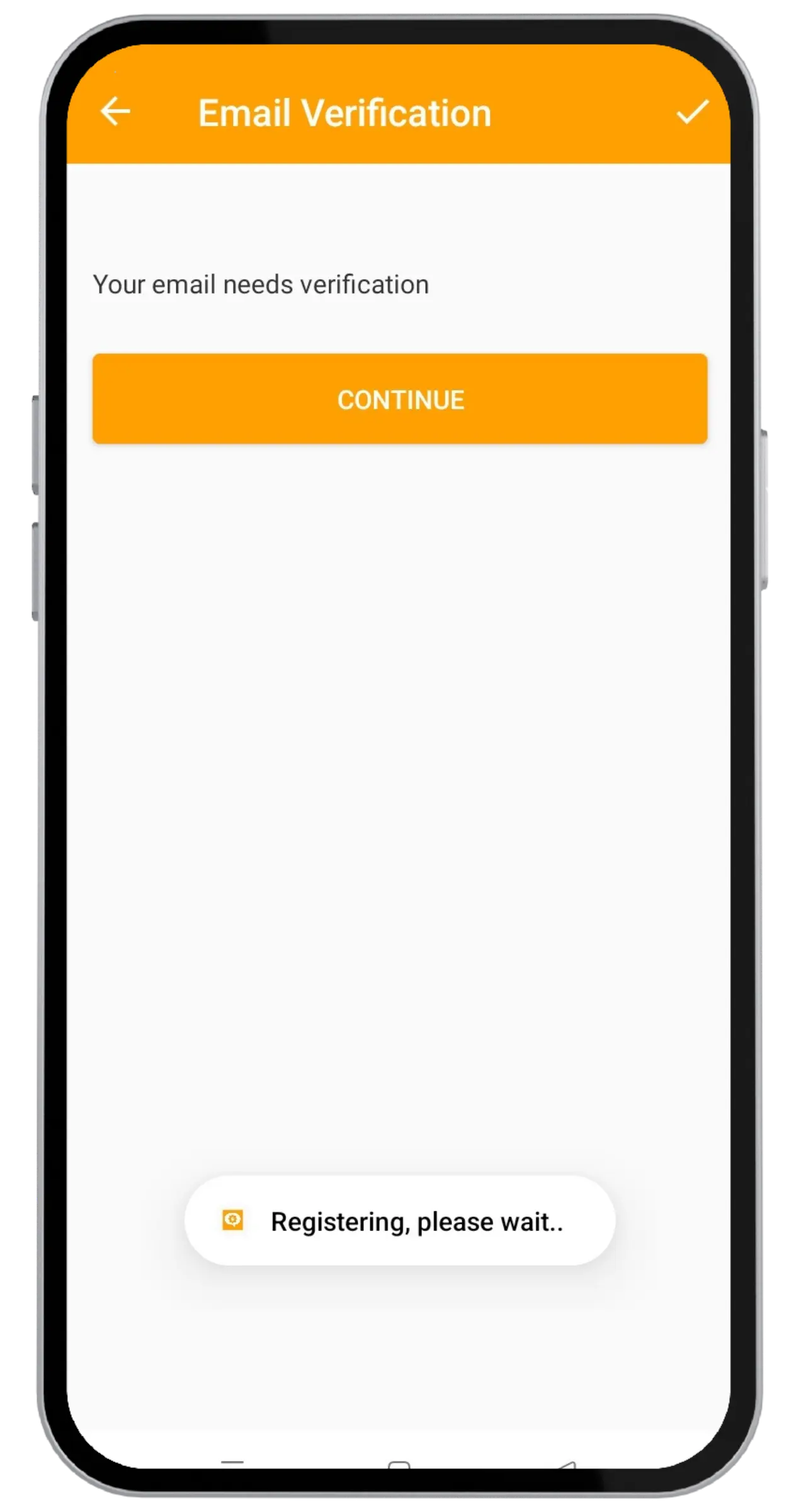
Verify your email address
If you see this screen, it means your email address has been successfully registered. If you get an error at this stage, try a different email.
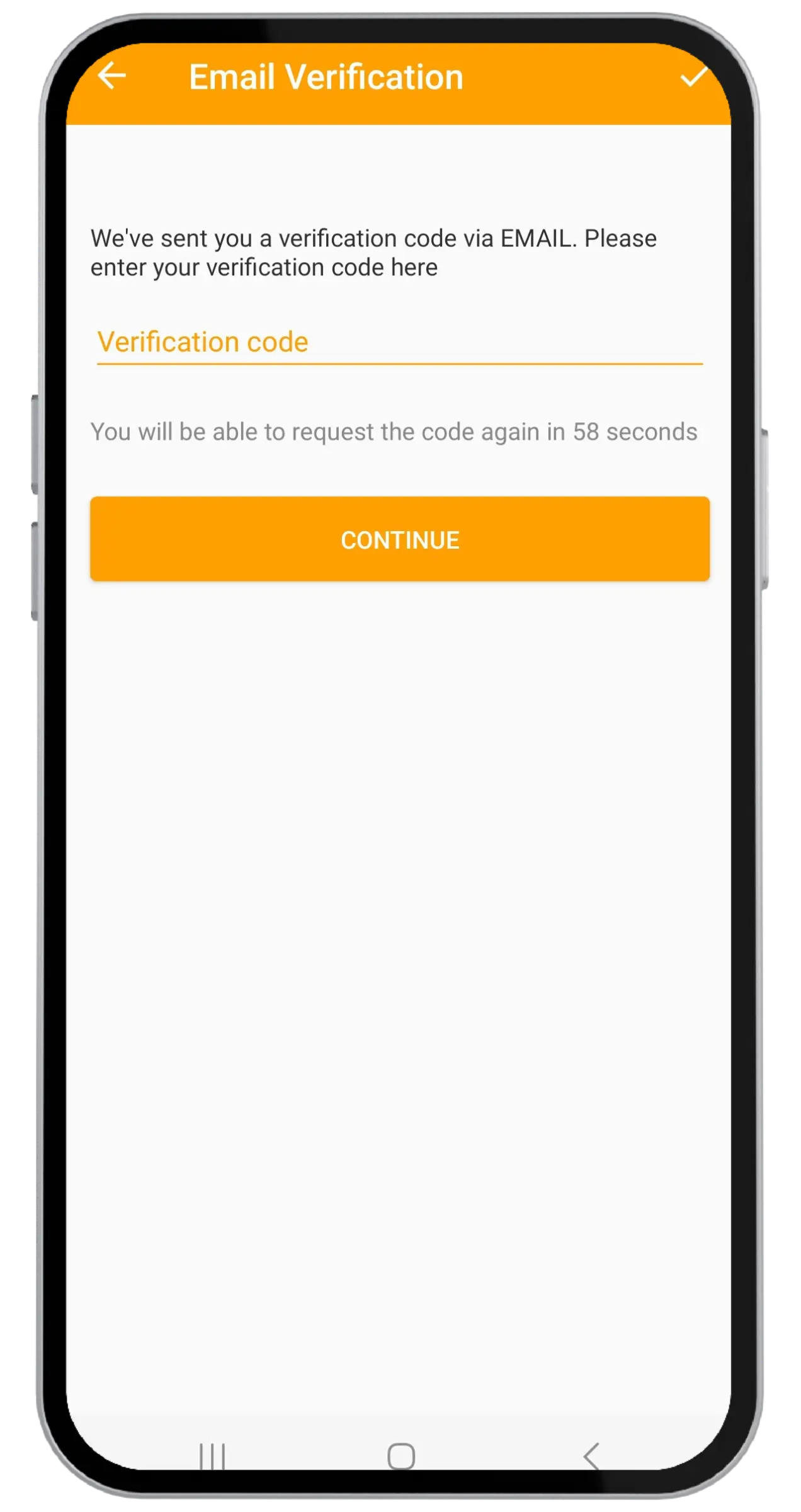
Enter your verification code
We'll send you a code via email to verify your email address. Enter the code and the app will proceed with registration.
Add Blip SMS to the white list
If you have an Android 6+ device, you'll need to add Blip SMS to the white list to allow it to run in the background. This ensures you don't miss any test messages.
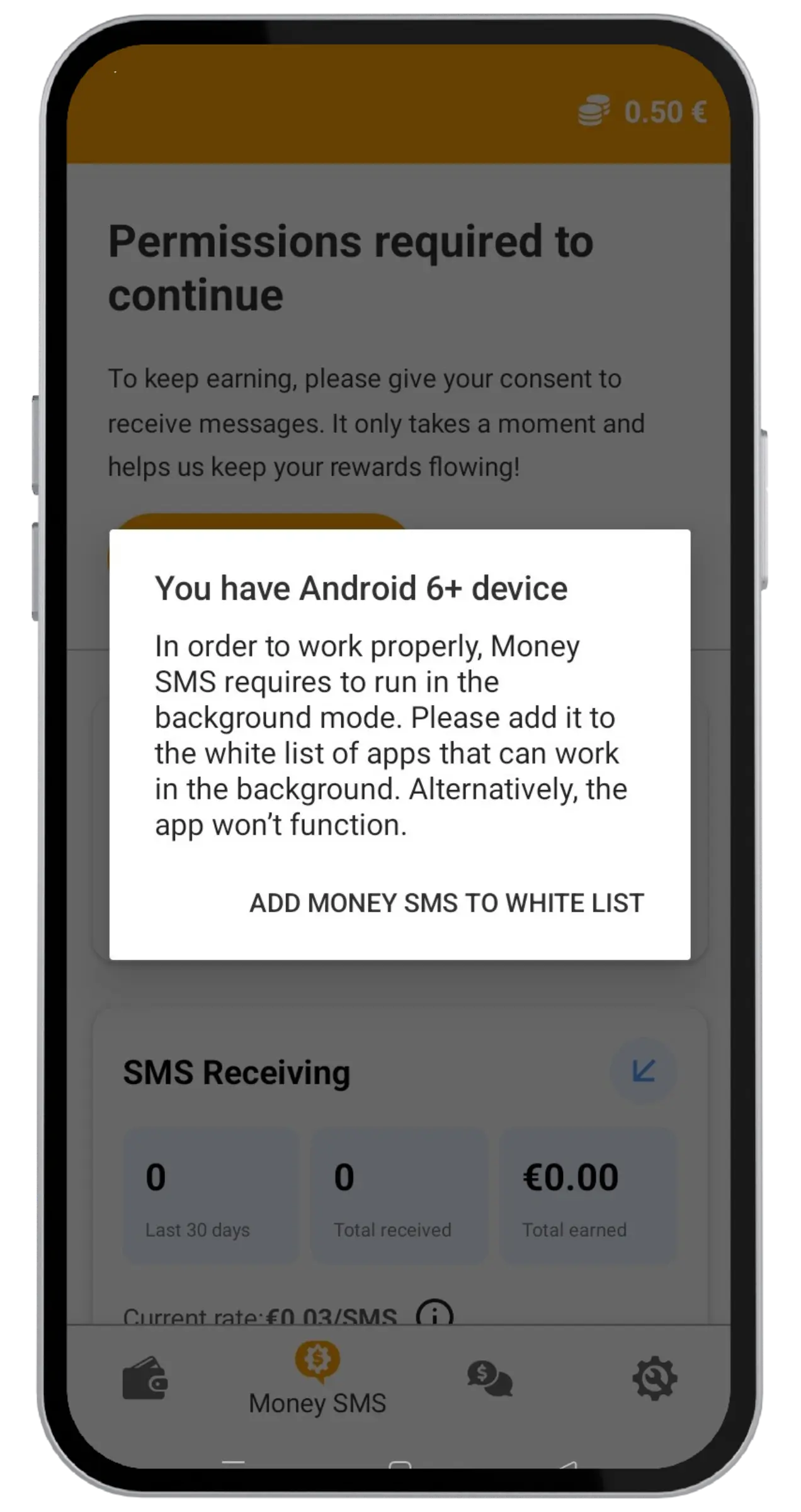
Let the app run in the background
Give your permission for Blip SMS to run in the background. You may also need to optimize your battery usage settings.
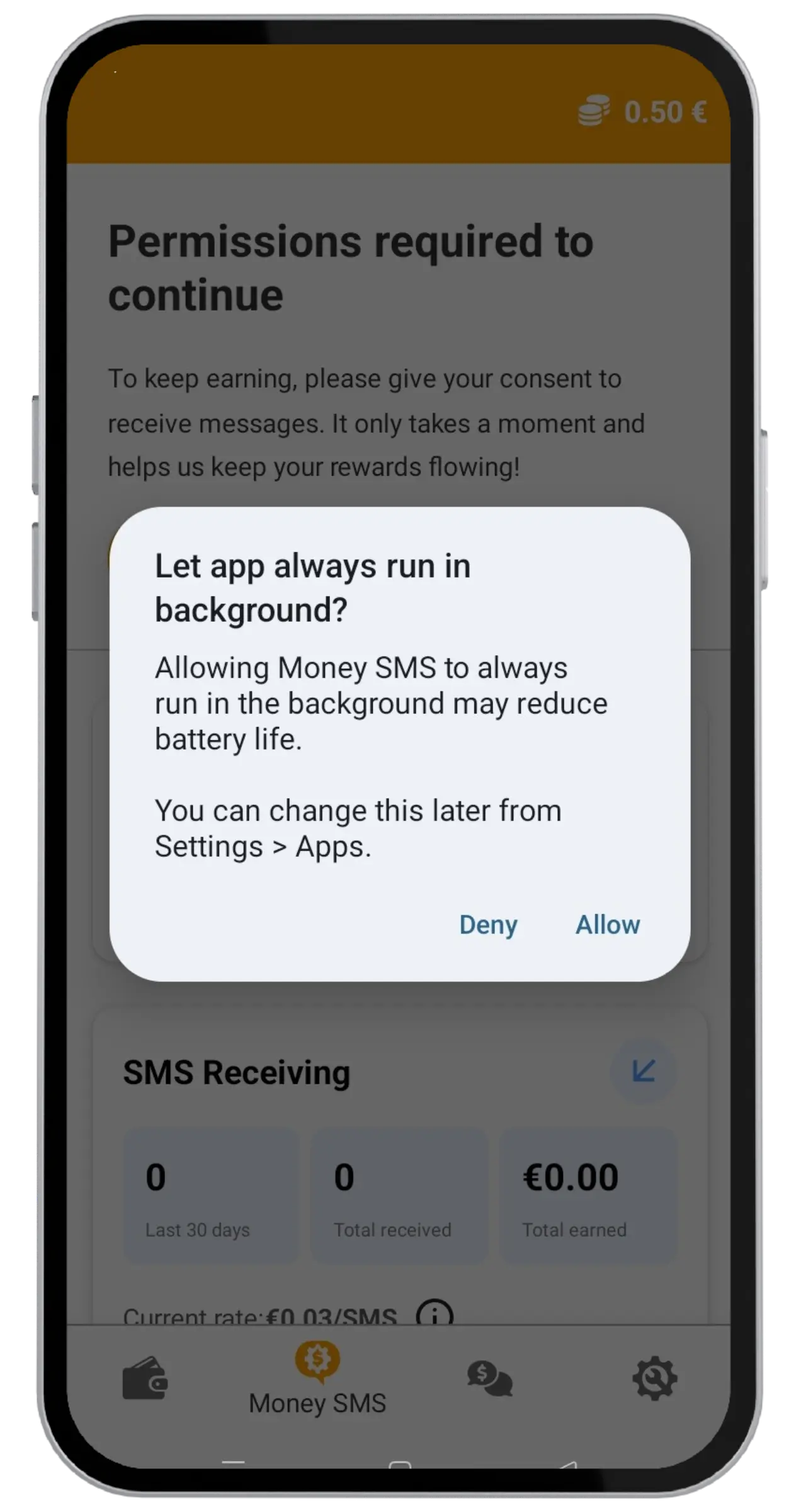
- Permissions are required solely to enable key features, such as detecting test SMS or managing test calls.
- While the app requests access to certain data, it is strictly used to perform its functions and not for any other purpose.
- Your sensitive information, such as personal messages, is not stored or shared.
Get started with Blip SMS
After you complete all the setup steps, you'll be taken to the main screen. There you can see your earning rate, statistics, and current status.
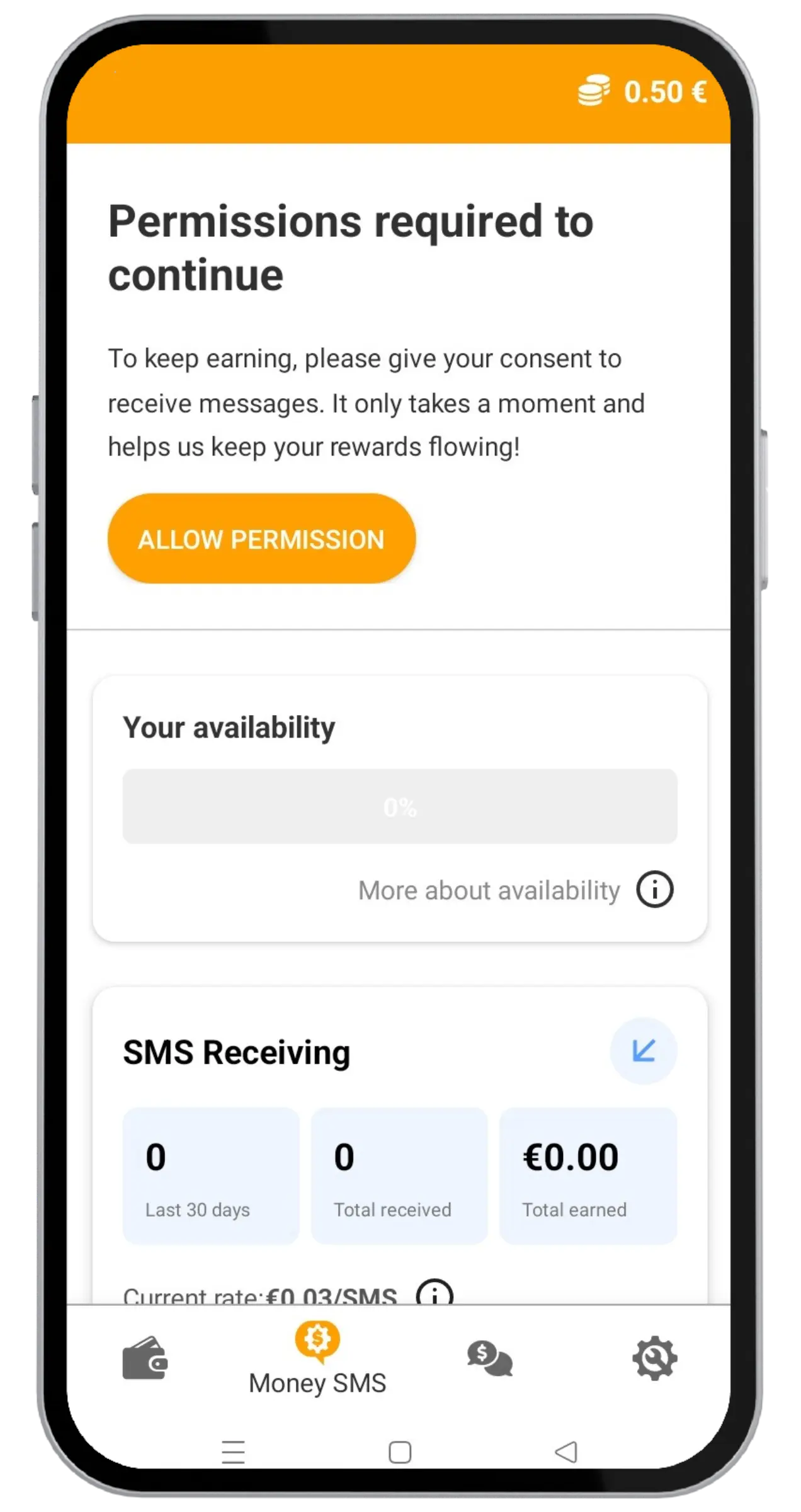
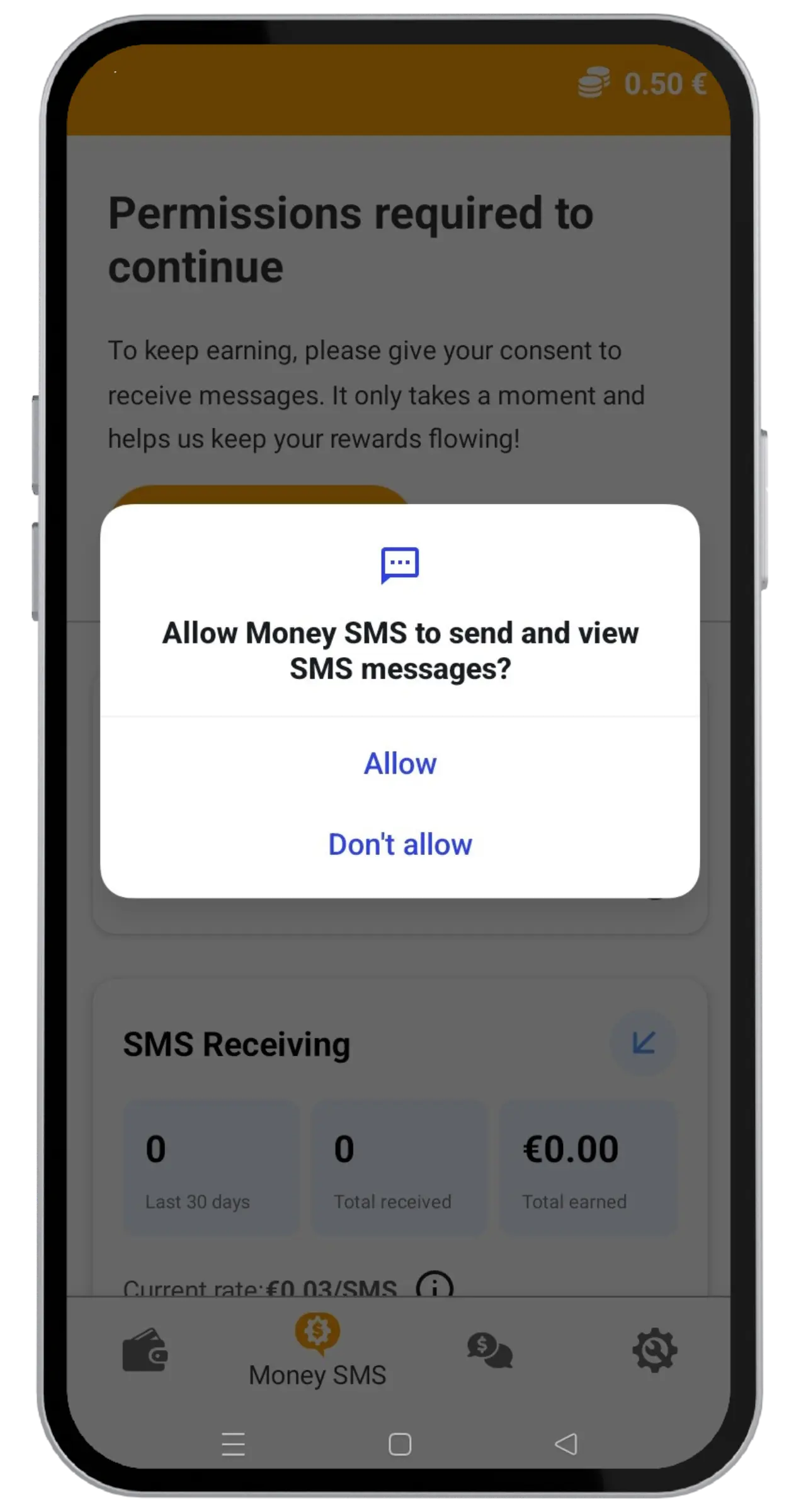
Grant Blip SMS permissions
Blip SMS needs to detect test SMS to pay you. Grant the app permissions by tapping "Allow". You can revoke them anytime in your device Settings.
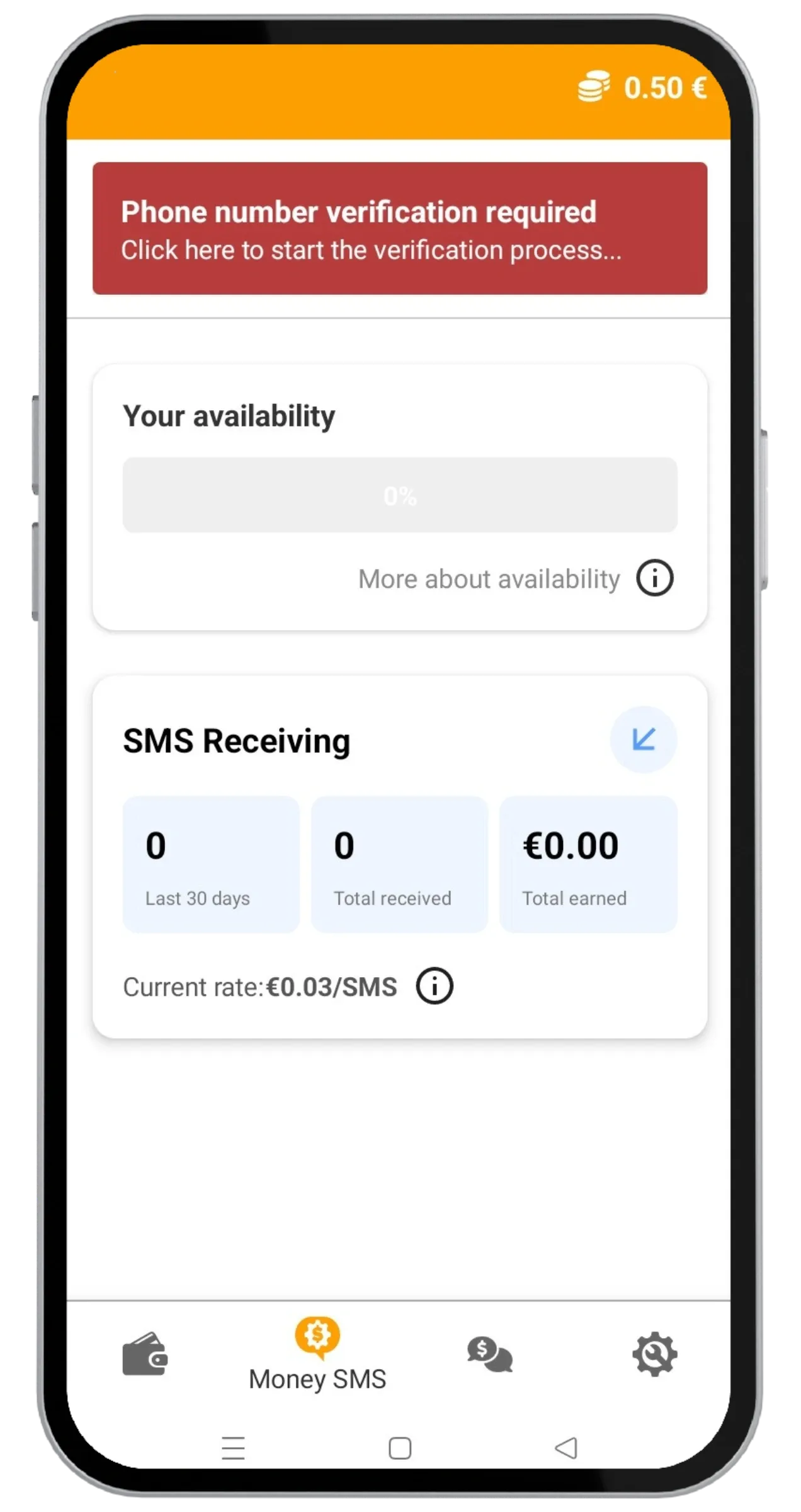
Verify your phone number
The red warning on the main screen means you haven't verified your phone number yet. This is a mandatory step to finish your registration. Tap the warning to begin verification.
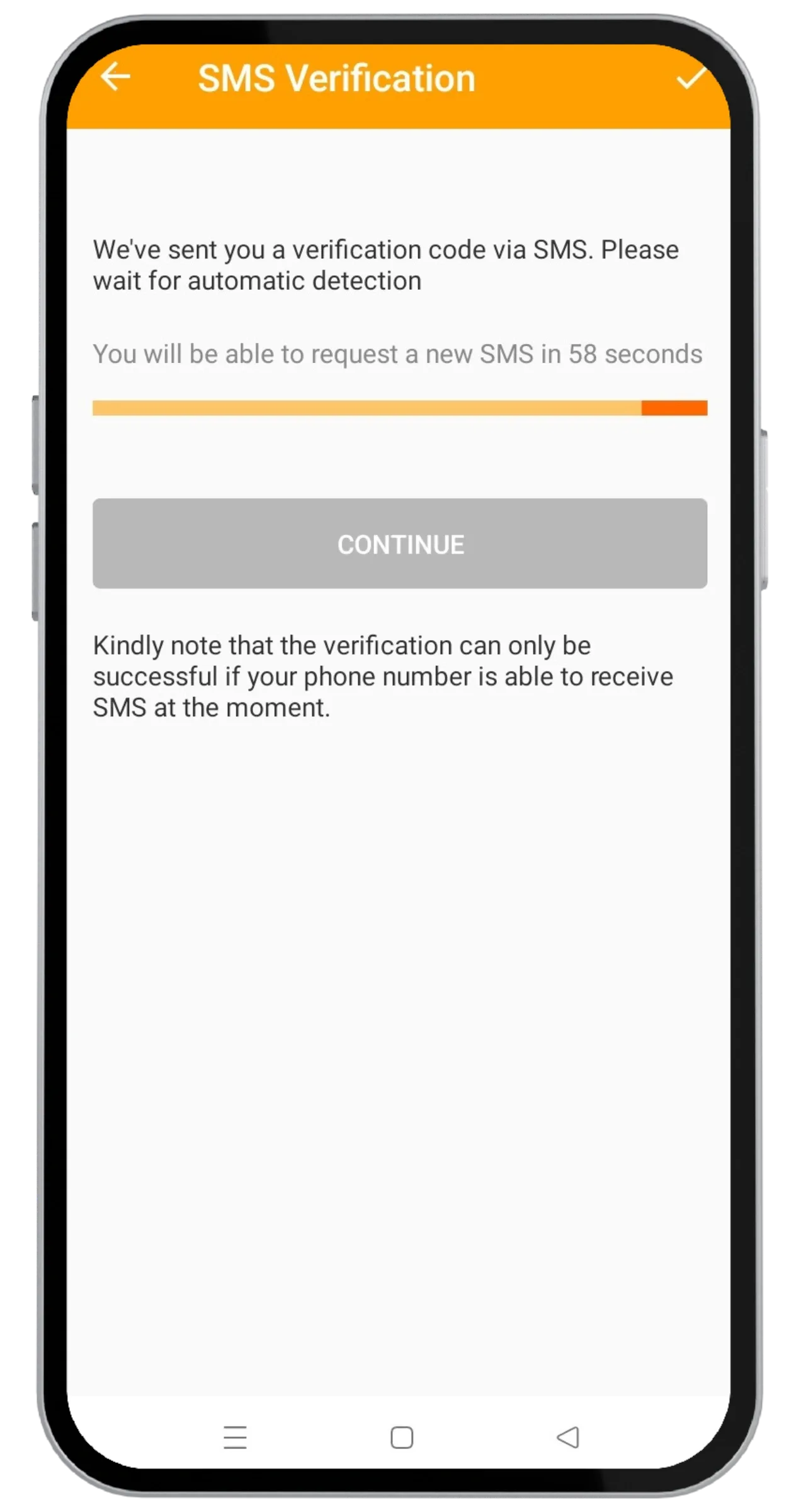
Wait for automatic detection
We'll send a verification SMS to the number you entered earlier. The app will detect it automatically. If you fail to receive our SMS, check your phone's signal strength and try again.
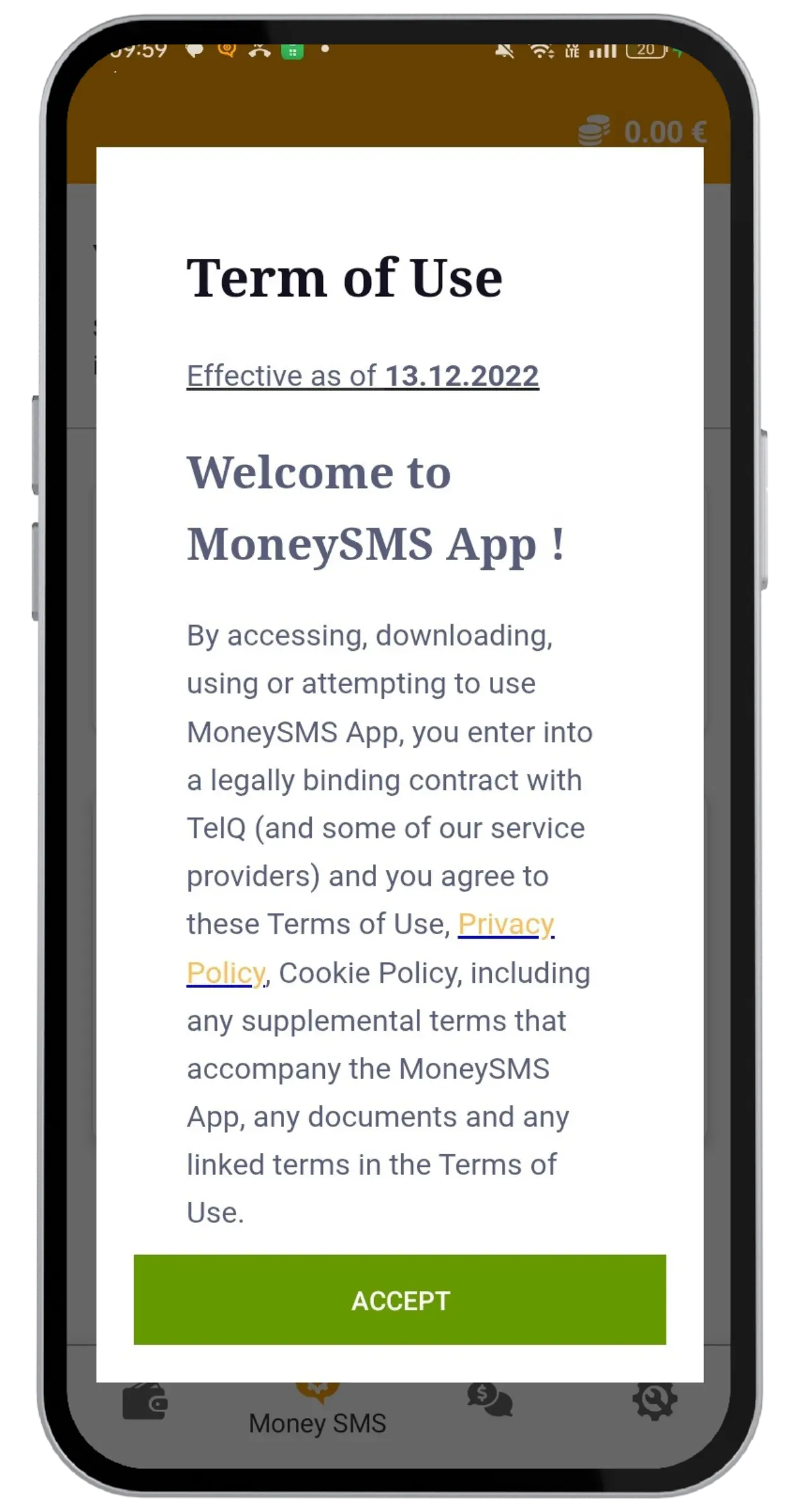
Agree to Terms & Conditions
When you log in for the first time or update to a new version, you'll need to read and accept the terms and conditions.
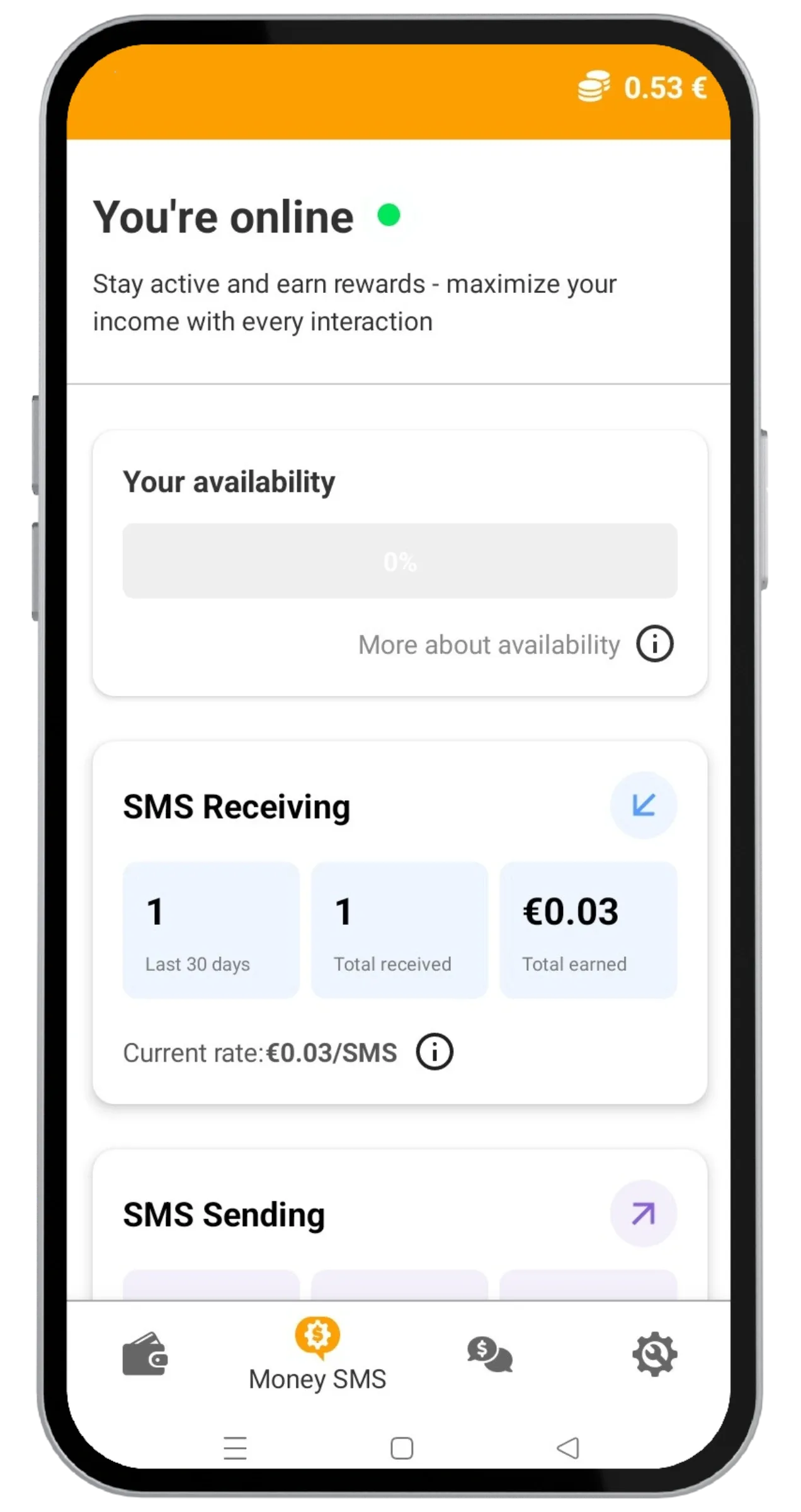
Stay online and earn
The app always shows your current status. You need to be online at all times to receive the maximum number of test SMS and maximize your earnings. Keep the app running and your internet connected!
Ready to get started?
Enter your email to receive the download link and begin earning today.
Check your email!
We've sent the download link to your inbox.